| Bookmark Name | Actions |
|---|
Manage Message Templates
Use this feature to manage message templates. This feature is applicable to the users who have the required permissions to access it.
Menu path: Messages > Templates
The app displays the list of available templates. You can do the following:
NOTE: If you don't see any templates, then the templates are yet to be created.
- View the list of templates.
- View the details of a template.
- Create new template.
- Edit the template.
- Delete a template.
- Search for a template.
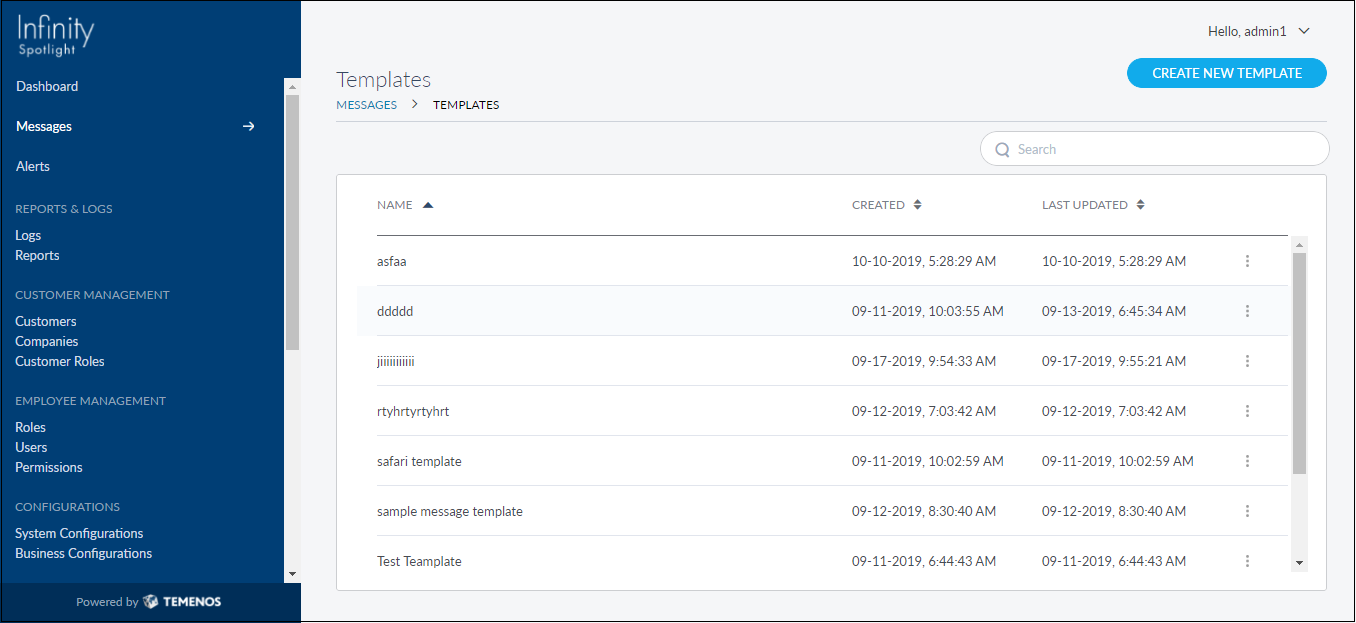
View Template List
The app displays the list of all the available templates. These templates get listed in the templates list available in Create New Message and Reply message windows.
Menu path: Messages > Templates
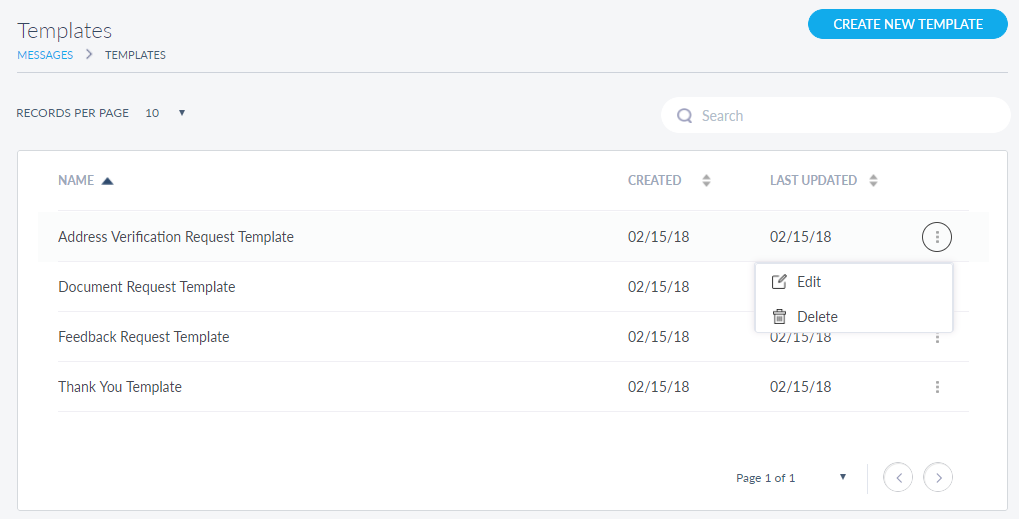
The template list is represented as rows with the following details: Name, Created and Last Updated.
You can sort the list based on any of the columns by using the sort icon (
 denotes sorted by that column).
Pagination is available and you navigate to any required page by choosing from the list. You can also choose the number of records that should be displayed on a page (for example, 10, 50, or 100).
You can do the following
- Click Create New Template to add to the list.
- Click a template to view the template details.
- Click the contextual menuavailable on each row to open and do the following. Click again to close the menu:
- Search for a template using search option and search criteria.
Create New Template
Use the feature to add a new template to the templates list.
Menu path: Messages > Templates > Create New Template
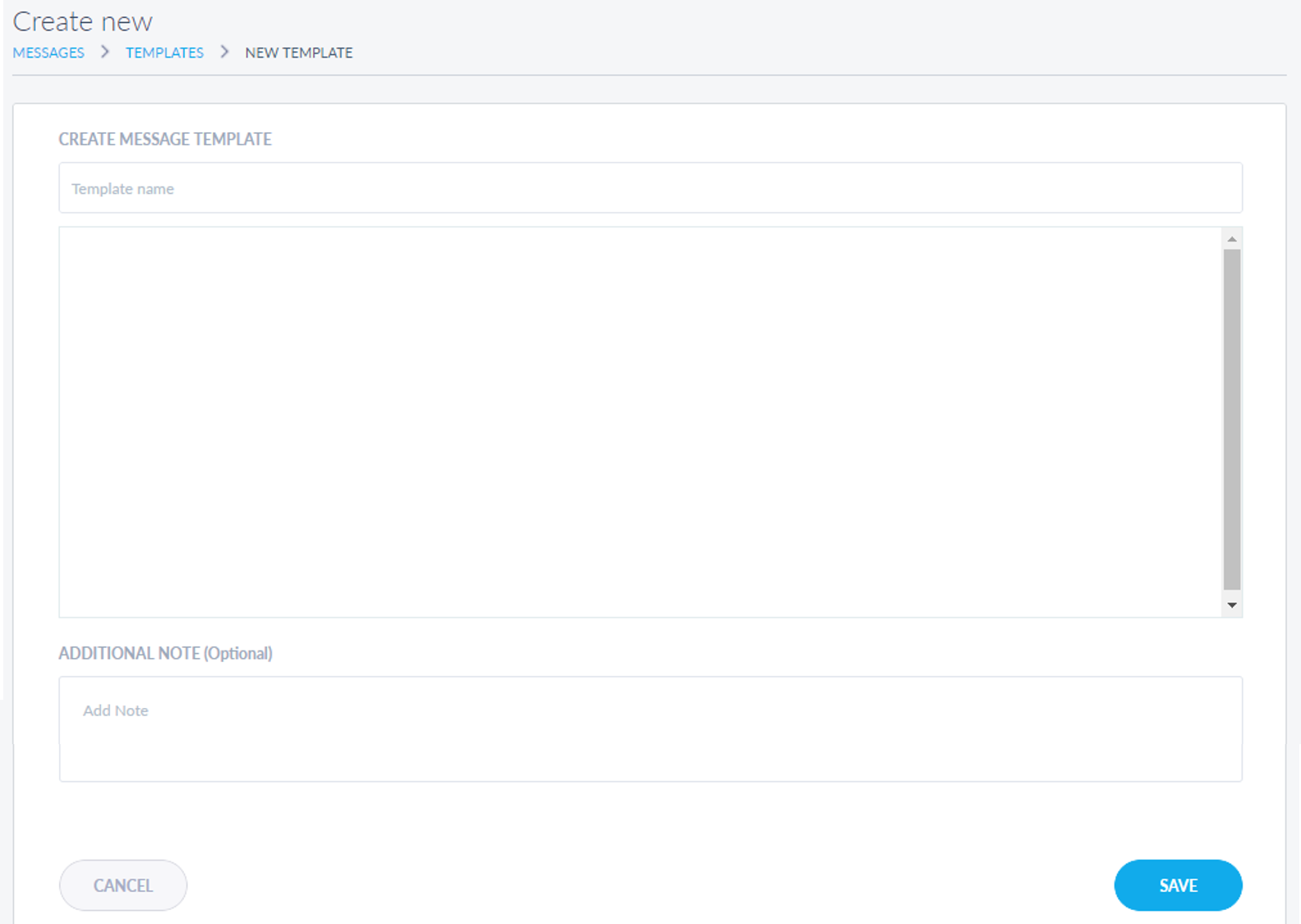
You can do the following in create new message screen:
- Enter a name for the template in Template Name field which must denote the purpose of the template. It is mandatory and has 80 characters limit.
- Write the body of the template in the text area available below the Template Name field. It is mandatory and has 1500 characters limit.
- You can add any note in the Additional Note field. This is optional and has 500 characters limit.
- Save the template. The new template is added to the templates list.
NOTE: You can cancel the process at any time. The changes are not saved.
View Template Details
The app displays the template body of the selected template. You can also edit or delete the template from here.
Menu path: Messages > Templates > Click a template row
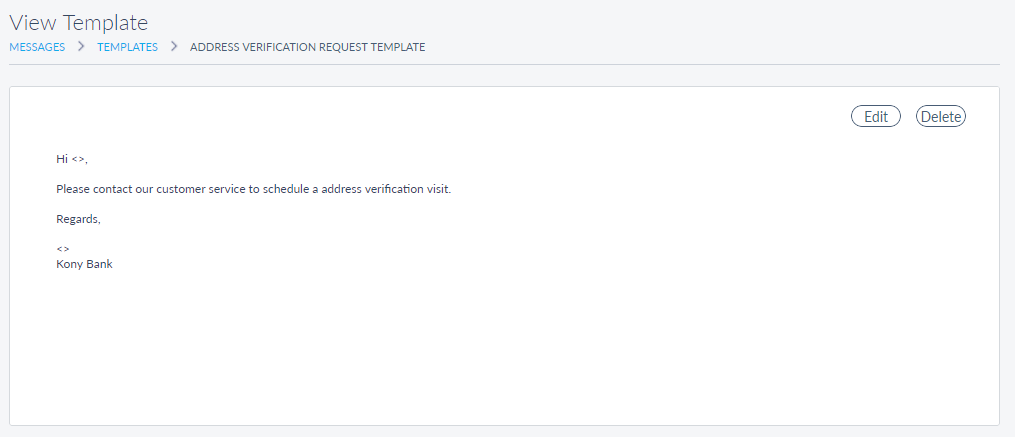
Search for a Template
Use the search option to search for a particular template using search criteria.
Menu path: Messages > Templates > Search
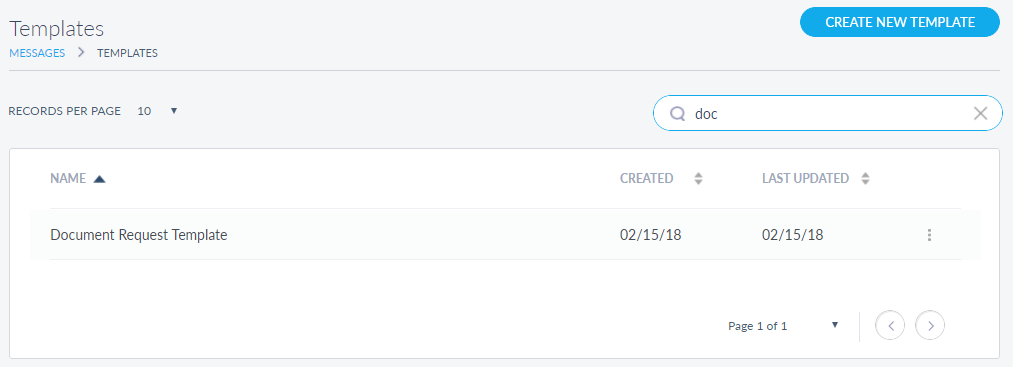
Enter the search keyword (template name) in full or in part. The app displays the matching records automatically.
Use to clear the search field.
Edit Template
Use the feature to edit the details of the selected template.
Menu path: Messages > Templates > Templates details screen > Edit
You can also perform this action with the help of contextual menu available on the templates list screen.
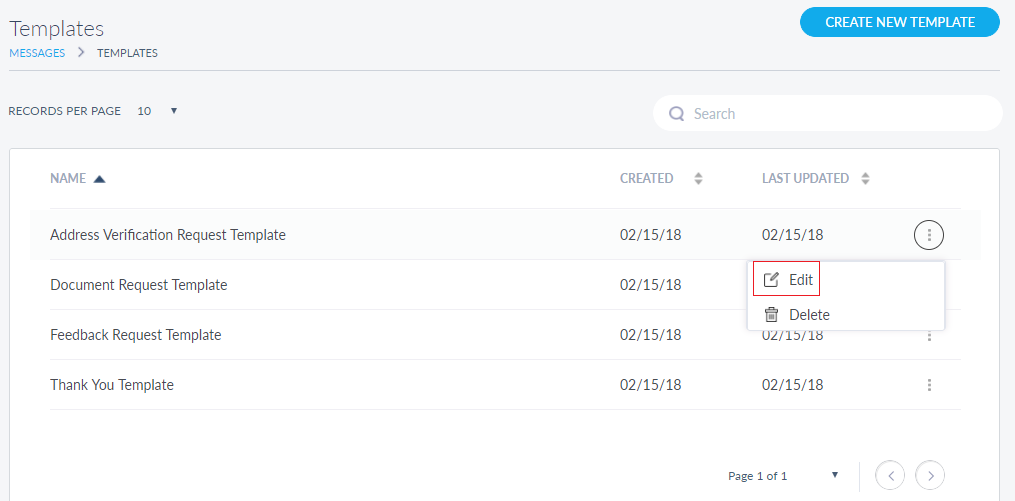
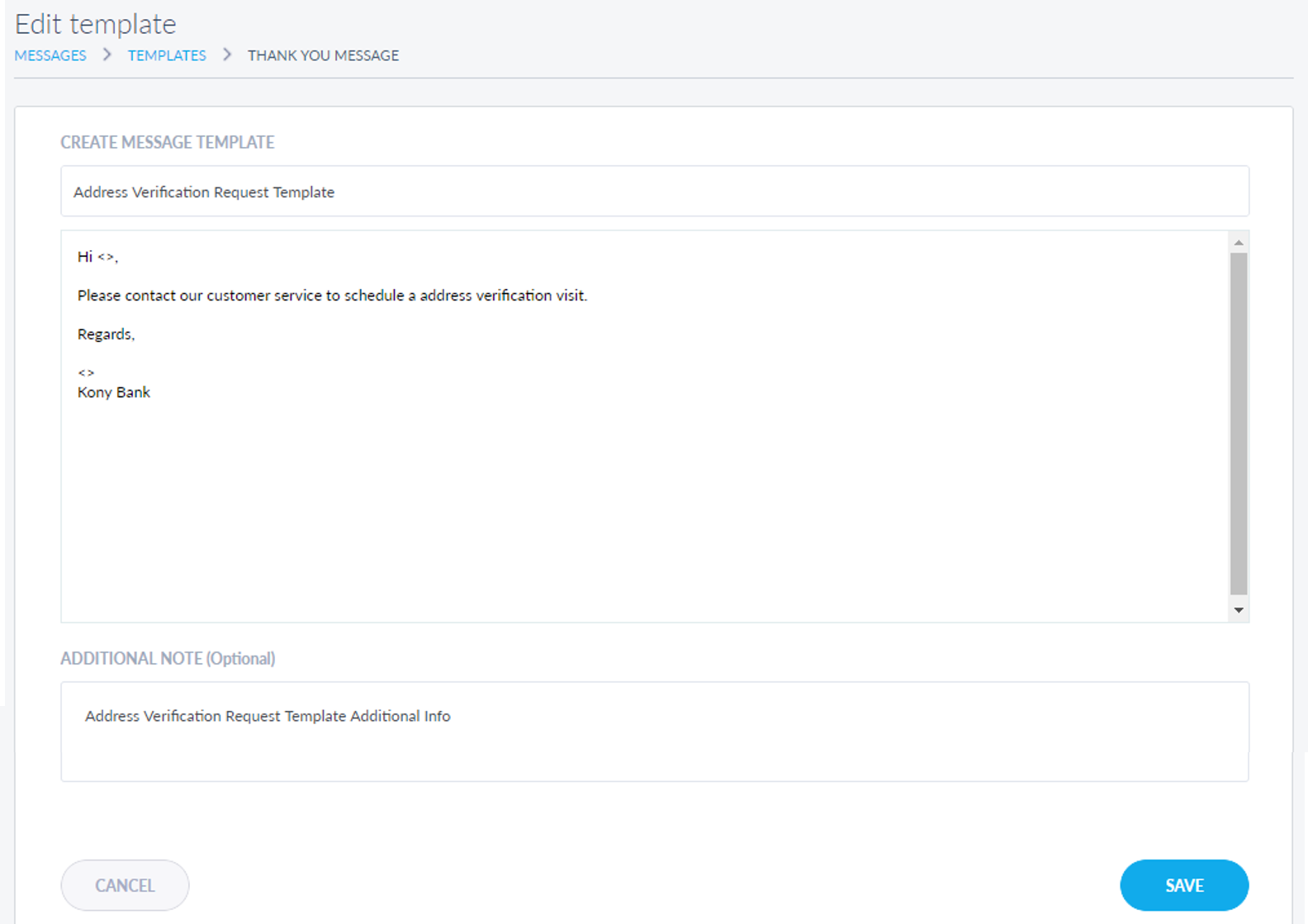
The edit screen is similar to the create a new template screen with the provision to modify the details. Make the changes as required:
- Template Name
- Template body
- Additional Note.
Save the changes as required. The template is edited.
NOTE: You can cancel the process at any time. The changes are not saved.
Delete Template
Use the feature to delete the selected template.
Menu path: Messages > Templates > Templates details screen > Delete
You can also perform this action with the help of contextual menu available on the templates list screen.
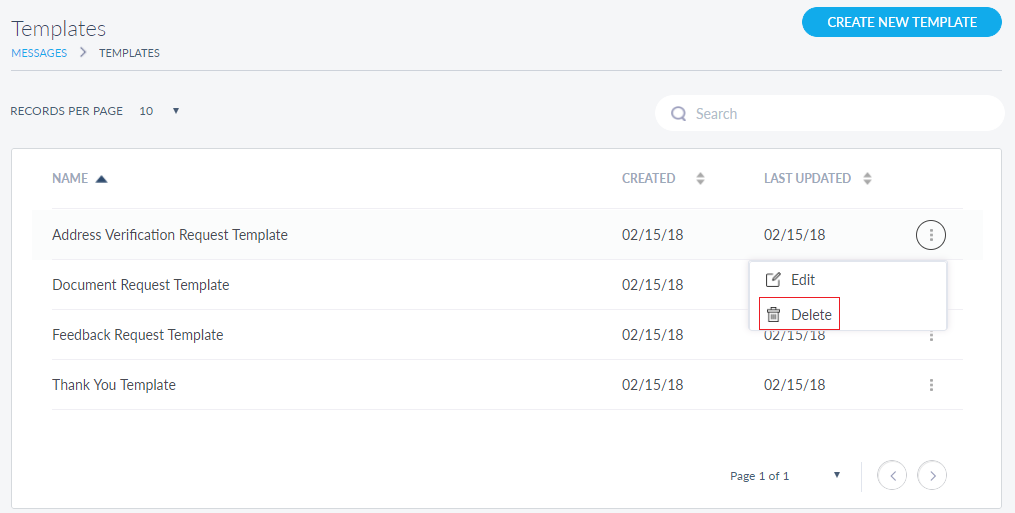
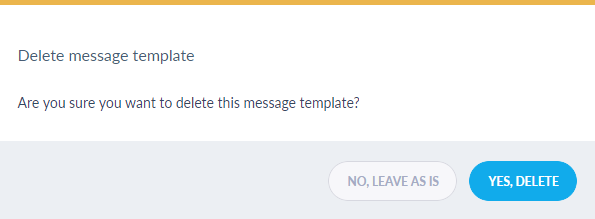
On the confirmation screen, confirm the action. The template is removed from the list.
Add Bookmark
save your best linksView Bookmarks
Visit your best links BACK
BACK


Are you sure you want to log-off?